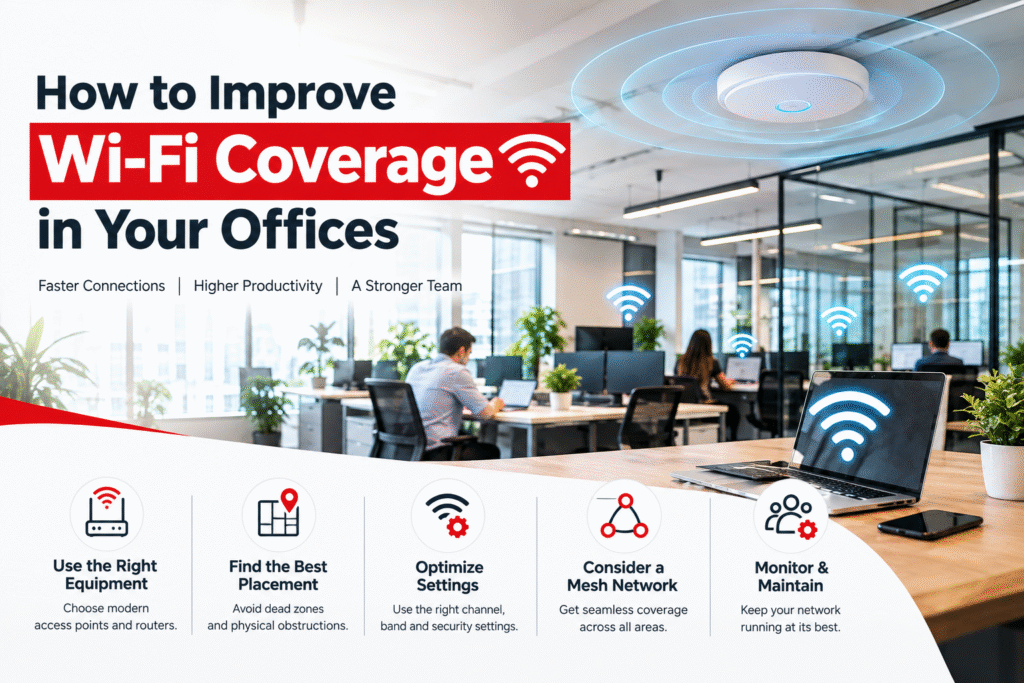
Slow internet, dropped video calls, and dead zones near conference rooms aren’t just annoying they cost productivity. If your team is constantly complaining about weak Wi-Fi signal or poor wireless coverage at work, the problem usually isn’t your internet plan. It’s how your office Wi-Fi network is designed.
In this guide, we’ll walk through the most effective ways to improve Wi-Fi coverage in offices, from quick fixes to full wireless network upgrades, so every employee gets fast, reliable connectivity no matter where they sit.
Why Office Wi-Fi Coverage Is Often Poor
Before fixing the problem, it helps to understand what causes Wi-Fi dead zones and weak signal strength in commercial spaces:
- Building materials — concrete walls, metal framing, and glass partitions block or weaken wireless signals
- Too few access points — a single router trying to cover a large office floor
- Outdated equipment — old routers or access points not built for high device density
- Signal interference — competing signals from nearby networks, microwaves, or Bluetooth devices
- Poor router placement — hardware tucked in closets or corners instead of central, open areas
- High device density — laptops, phones, printers, and IoT devices all competing for bandwidth
Identifying the root cause is the first step toward a real fix — not just a temporary workaround.
How to Improve Wi-Fi Coverage in Your Office
1. Conduct a Wireless Site Survey
A Wi-Fi site survey maps your office layout, identifies dead zones, and shows exactly where signal strength drops. Professional site surveys use heat-mapping software to visualize coverage gaps giving you data-driven placement instead of guesswork.
2. Upgrade to a Business-Grade Wireless Network
Consumer routers aren’t built for office environments. A business Wi-Fi system or enterprise wireless network offers:
- Higher device capacity
- Better range and signal strength
- Advanced security protocols
- Centralized network management
If you’re still using a home router for a multi-room office, this is often the single biggest upgrade you can make.
3. Deploy Multiple Access Points (Not Just One Router)
Instead of relying on one powerful router, spreading out multiple wireless access points (APs) across your office ensures even coverage. This approach common in mesh Wi-Fi systems eliminates dead zones by letting devices connect to whichever AP is strongest, rather than one router straining to cover the whole floor.
4. Use a Mesh Wi-Fi Network for Seamless Roaming
A mesh network allows employees to move between meeting rooms, desks, and common areas without their device dropping connection or manually switching networks. This is especially valuable in open-plan offices and multi-floor buildings.
5. Optimize Access Point Placement
Even great hardware underperforms with poor placement. Best practices include:
- Mounting APs on ceilings or high walls, not floors or desks
- Keeping access points away from metal cabinets, elevators, and thick walls
- Spacing APs evenly rather than clustering them in one area
- Avoiding placement near microwaves, cordless phones, or other 2.4GHz interference sources
6. Separate Networks by Purpose
Splitting your Wi-Fi into dedicated networks reduces congestion:
- Employee network — for work devices
- Guest Wi-Fi network — isolated for visitors and clients
- IoT network — for smart devices, printers, and security cameras
This not only improves speed but strengthens network security by limiting guest access to sensitive systems.
7. Switch to Dual-Band or Tri-Band Routers
Modern dual-band and tri-band Wi-Fi routers broadcast on both 2.4GHz and 5GHz (or 6GHz with Wi-Fi 6E) frequencies. The 5GHz band offers faster speeds over shorter distances, while 2.4GHz travels further through walls — using both intelligently improves overall coverage.
8. Upgrade to Wi-Fi 6 or Wi-Fi 6E
Wi-Fi 6 (802.11ax) handles significantly more connected devices with less congestion — critical for offices packed with laptops, phones, smart TVs, and IoT devices. If your office is still running Wi-Fi 5 or older, this upgrade alone can dramatically improve performance.
9. Reduce Interference From Physical Obstructions
Where possible:
- Relocate access points away from thick concrete or metal walls
- Use Wi-Fi range extenders or additional APs to bridge coverage gaps
- Replace outdated cabling that limits access point performance
10. Monitor and Manage Network Performance
Use network monitoring software or a cloud-managed Wi-Fi platform to track bandwidth usage, identify congestion points, and get alerts before employees notice a problem. Proactive monitoring beats reactive troubleshooting every time.
Signs Your Office Needs a Wi-Fi Upgrade
- Frequent buffering during video calls or presentations
- Weak signal in specific rooms or floors
- Slow file uploads/downloads despite a fast internet plan
- Devices constantly disconnecting or reconnecting
- IT team fielding repeated complaints about “the internet being down”
If two or more of these sound familiar, it’s likely a coverage and infrastructure issue, not an internet speed issue.
Benefits of Improved Office Wi-Fi Coverage
- Higher productivity — no more lost time waiting on slow connections
- Better collaboration — smoother video conferencing and file sharing
- Scalability — easily support new hires, devices, and office expansions
- Improved security — segmented networks reduce vulnerability to attacks
- Better employee experience — reliable connectivity across every workspace
Final Thoughts
Improving Wi-Fi coverage in your office isn’t about buying the most expensive router — it’s about smart network design: the right number of access points, proper placement, modern hardware, and ongoing monitoring. Whether you need a quick fix or a full office network upgrade, addressing coverage strategically will save your team time, frustration, and lost productivity.
Need help designing a reliable, scalable Wi-Fi network for your office? Contact for SEFA a free wireless site survey and consultation.